At a Glance

In your Canvas course, A+ Attendance (also called aPlus+ Attendance) can be used by the teaching team to track your attendance during class sessions. The teaching team has the option to either record attendance manually or ask you to check in using a unique code via a web browser or mobile device.

In this guide for students, you’ll learn how to check in using a unique code (if enabled by the teaching team).

Before you check in: Make sure you’re connected to MIT Wi-Fi and that the MIT VPN or another VPN is not turned on.

To check in: Open A+ Attendance from your Canvas course using the Canvas Student app or a web browser, then enter the attendance code displayed by your teaching team. The code may change every 30 seconds, so enter the code currently shown on the screen.

Can’t check in? Let your teaching team know during class so they can manually mark you as attended.

Seeing a “Network access restricted” error? Follow the steps in How to Troubleshoot the “Network Access Restricted” Error in A+ Attendance as a Student.

Need help connecting to MIT Wi-Fi? Contact the STS Help Desk at stshelp@mit.edu or 617-253-2000.

How to Check In Via Your Web Browser

As a student, you can access A+ Attendance and check-in via a web browser (e.g., on your laptop using Google Chrome) by doing the following:

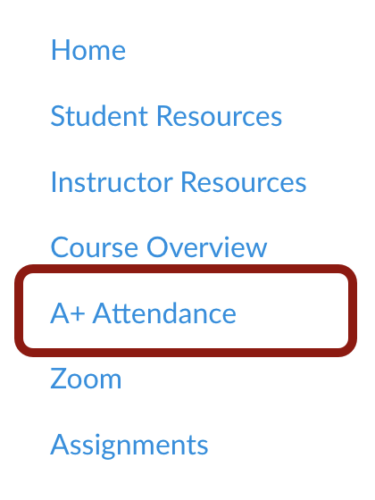
  1. In your Canvas course, click on A+ Attendance in the Course Navigation Menu.
    Screenshot of A+ Attendance in the Course Navigation Menu
  2. In the Code Entry section, click on the class session.
    Screenshot of class session
  3. Enter the code provided by the instructor in the Submit Code text box and click Submit. Note: Codes are NOT case-sensitive.
    Screenshot of the Submit Code text box and Submit button
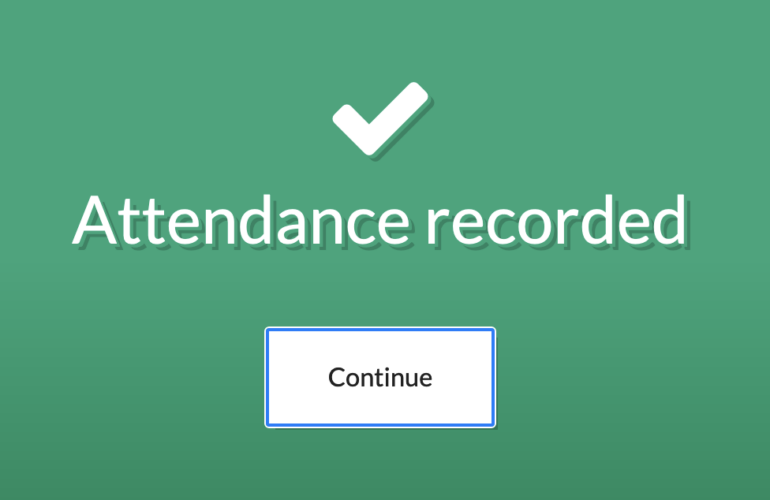
  4. When you’ve successfully entered the code, an Attendance Recorded message will appear.
    Screenshot of Attendance Recorded message

How to Check In Via the Canvas Student App

As a student, you can access A+ Attendance and check-in via the Canvas Student app on their iOS or Android devices.

  1. Download the Canvas Student app on your mobile device and login using your MIT username and password.
  2. On your Canvas Dashboard, tap on your course.
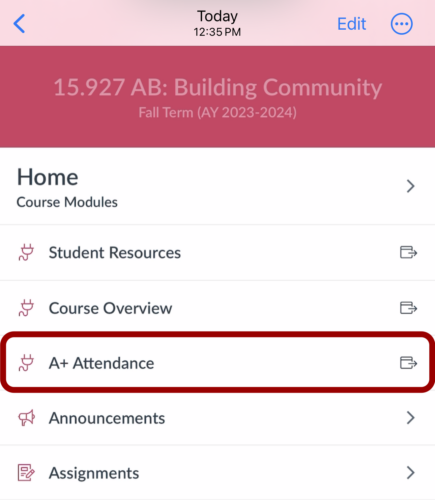
  3. In your Canvas course, tap on A+ Attendance in the Course Navigation Menu.
    Screenshot of A+ Attendance in the Course Navigation Menu in the Canvas Student app
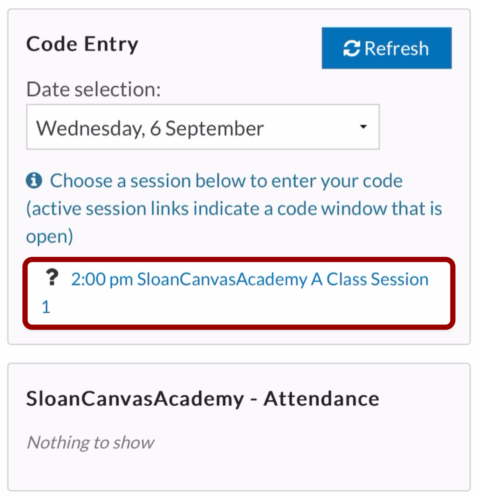
  4. In the Code Entry section, tap on the class session.
    Screenshot of Class Session link on the Canvas Student app
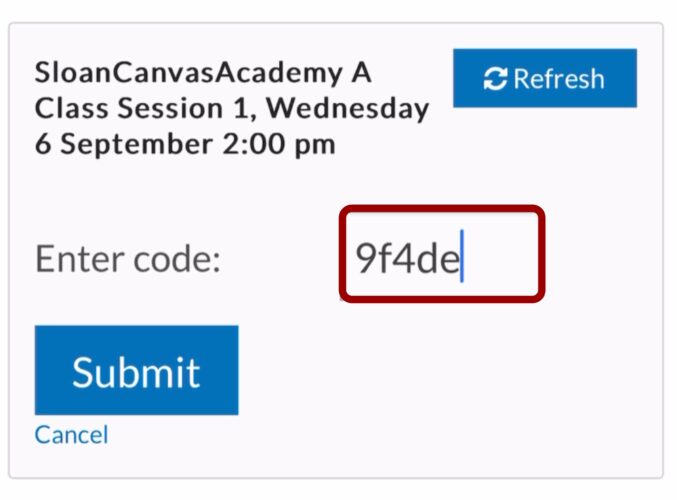
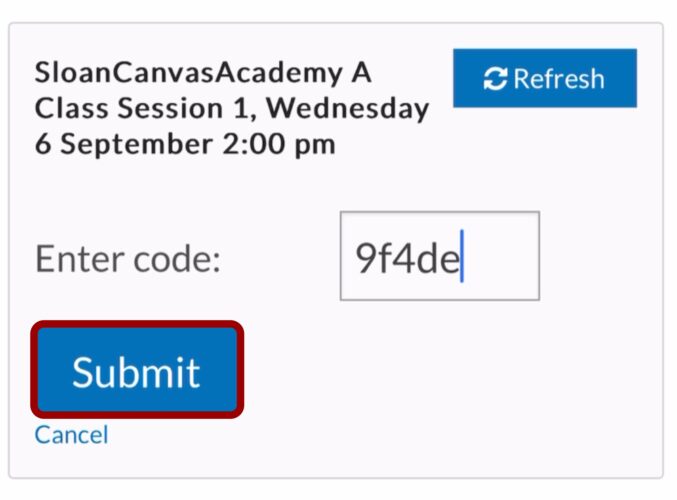
  5. Enter the code provided by the instructor in the Enter Code text box. Note: Codes are NOT case-sensitive.
    Screenshot of the Enter Code text box
  6. Tap the Submit button.
    Screenshot of the Submit button
  7. When you’ve successfully entered the code, an Attendance Recorded message will appear.
    Screenshot of Attendance Recorded message