At a Glance
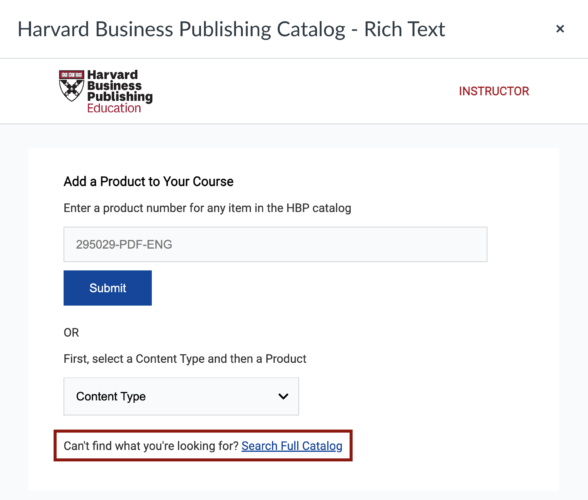
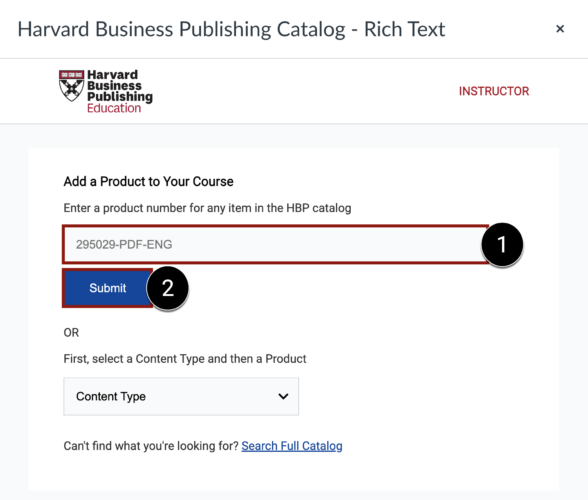
In this guide for teaching teams, you will learn how to use MIT Sloan’s Harvard Business Publishing (HBP) Canvas integration to add HBP content (e.g. cases, simulations, etc.) to your Canvas course.
There are two ways to do this, depending on your needs:
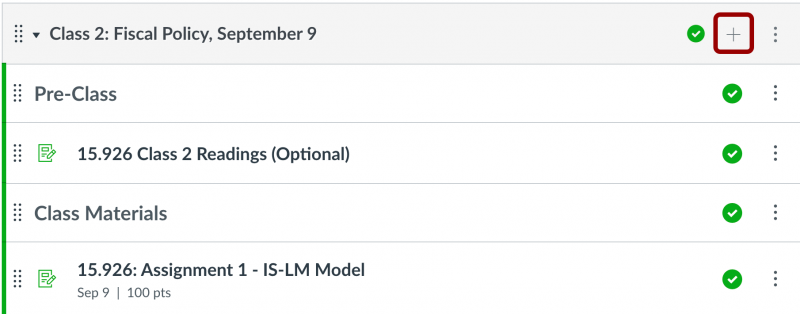
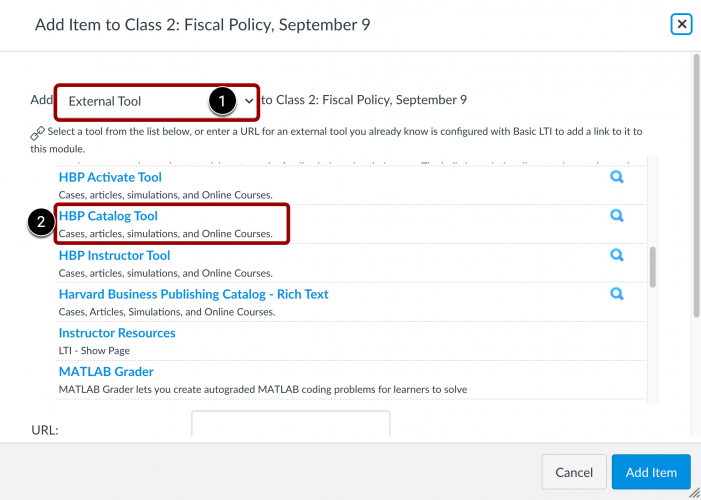
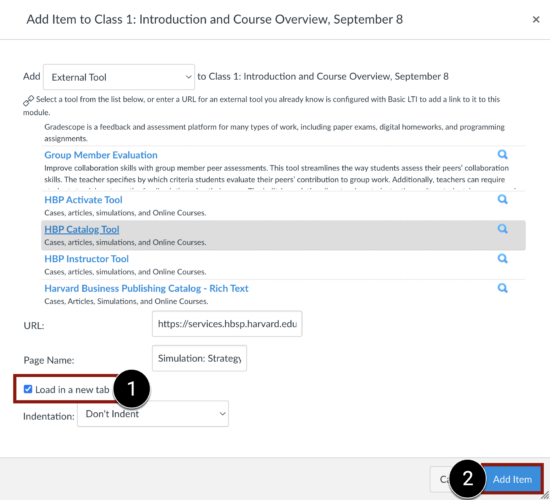
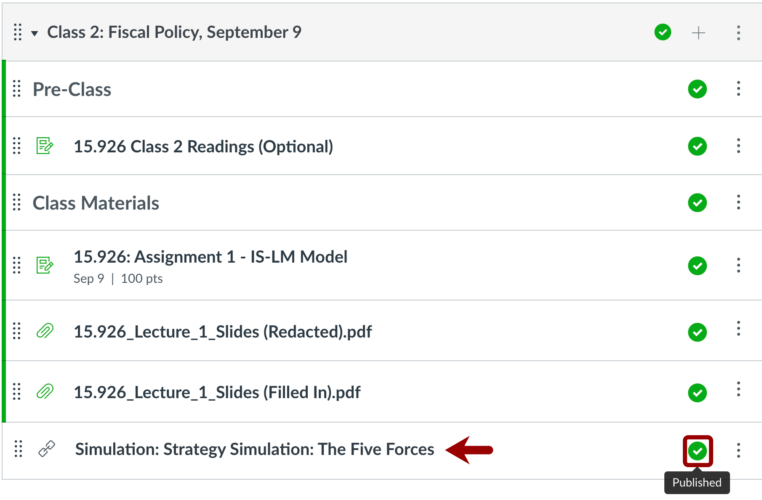
- Add a link to the HBP content directly to the Modules area.
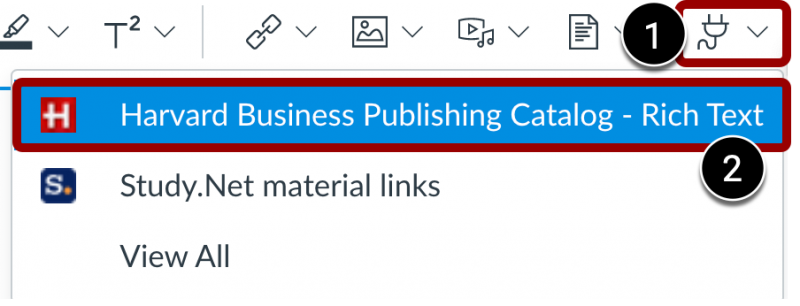
- Create a Canvas assignment and embed the HBP content in it.
Tip: Choose Option 1 if you only need your students to interact with the content during class time. Choose Option 2 if you want assign the HBP content as homework. Assignments with due dates are added to the student calendar.
IMPORTANT: When your course content is copied to a new Canvas site, all existing links to HBP content become invalid and must be recreated. This includes links to cases, articles, books, and simulations. Follow the steps on this page to re-add your HBP content and generate new links.
Tip: Student View works well with native tools in Canvas (e.g., Assignments, Modules, Pages, Quizzes, and Grades), but it does NOT work with Harvard Business Publishing (HBP) content. If you try to use Student View with HBP content, you’ll see an error message. If the content loads when you click it outside of Student View, your students should be able to access it as well.
Tip: Student View works well with native tools in Canvas (e.g., Assignments, Modules, Pages, Quizzes, and Grades), but it does NOT work with Harvard Business Publishing (HBP) content. If you try to use Student View with HBP content, you’ll see an error message. If the content loads when you click it outside of Student View, your students should be able to access it as well.