
SKIP AHEAD TO
At a Glance
Common questions about accessing, using, and troubleshooting the Course Overview Tool in Canvas.
SKIP AHEAD TO
Common questions about accessing, using, and troubleshooting the Course Overview Tool in Canvas.
The Course Overview Tool displays key course information including the course description, lecture day, time, and location, and the teaching team.
Students can also use it to request access to a livestream or classroom recording if they’re unable to attend class in person.
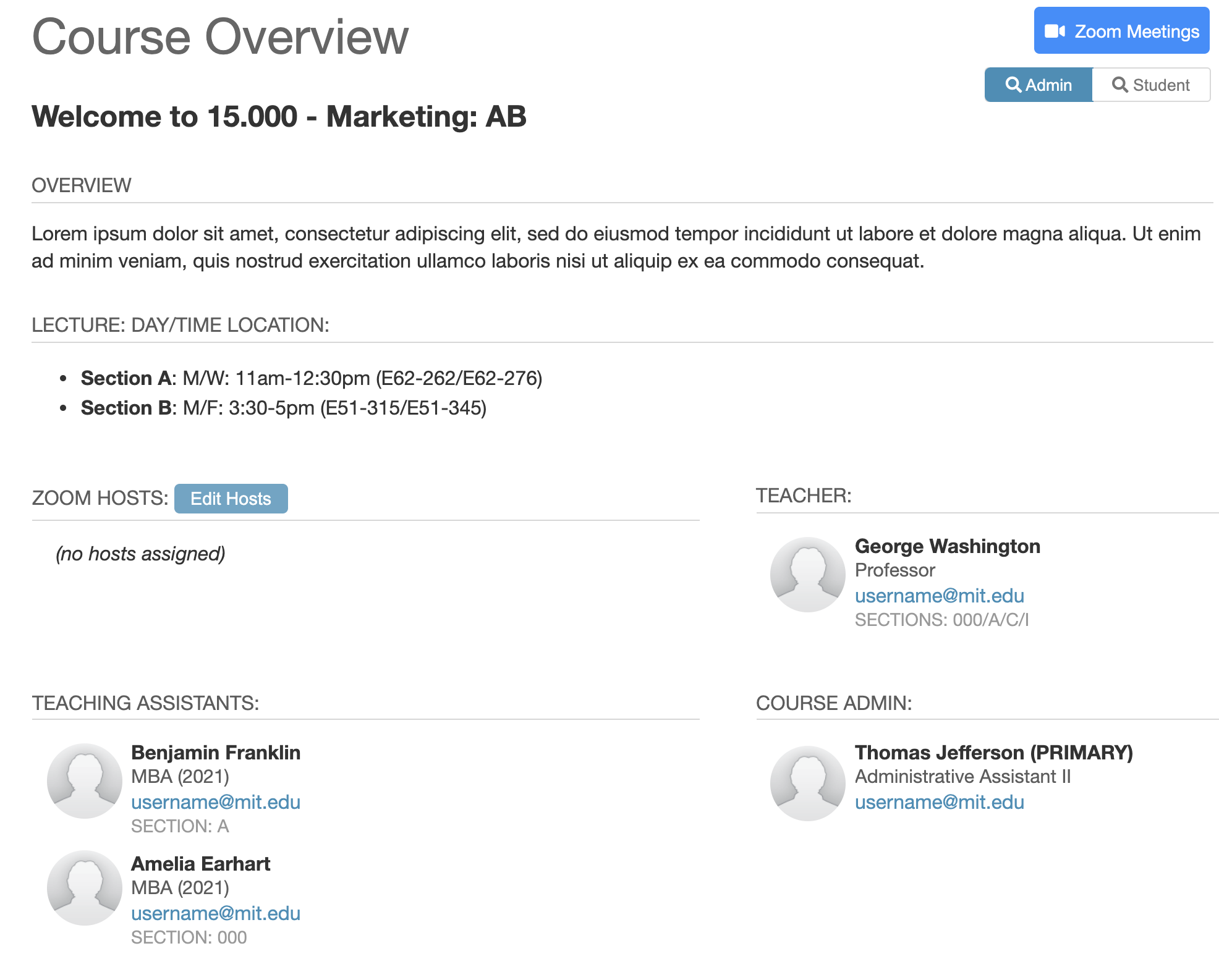
In your Canvas course, click on Course Overview on the Course Navigation Menu. Note: If “Course Overview” isn’t listed, you can easily enable it under Settings.
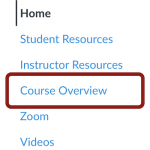
Tip: We strongly recommend keeping the Course Overview Tool visible in the Course Navigation Menu—it allows students to quickly view teaching team information and other course details.
The tool pulls the following information from the Sloan People Database (SPD):
Verify the accuracy of all details before your course goes live. Use the table below to reach the right contact for each type of issue.
Tip: Canvas pulls your course description directly from MySloan and can’t be manually edited in Canvas. If Sloan Educational Services (SES) can’t update it, we recommend including your preferred version in your course syllabus instead.