At a Glance
This guide shows you how to review, manage, and share results from a Team Member Evaluation in Peerceptiv. You’ll learn how to:
- Review class-level trends and individual student feedback
- Control when and how results are released to students
- Adjust visibility of ratings, comments, and grades
- Export results and submissions for your records or further analysis
Use this guide after your evaluation closes and you’re ready to work with the results.
We’re piloting Peerceptiv in select courses in Spring, Summer, and Fall 2026. This page contains information for courses that are taking part in the pilot program.
When Results Are Available
If you chose automatic release during setup, results are generated and shared when the final deadline passes.
If you chose manual release, students won’t see feedback or grades until you release them.
Review Results
Use the Results page to review class-level trends and individual student feedback from your Team Member Evaluation.
- Open your evaluation in Peerceptiv.
- Click Results in the Assignment Menu.
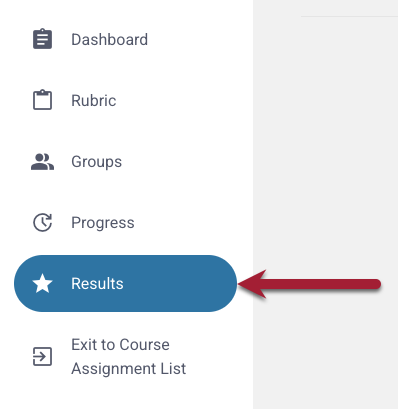
- Peerceptiv displays results in two main views:
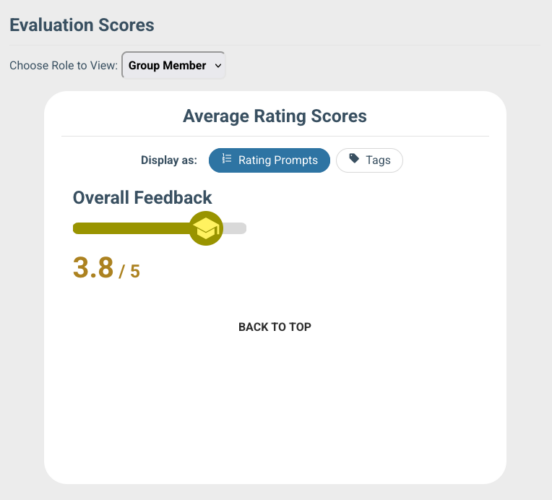
- Evaluation Scores (Class-level View):
- Shows the average rating scores for the class.
- You can:
- Switch between views for:
- Group members
- Whole group
- Group leader (if enabled)
- Instructors (if enabled)
- See overall trends across groups
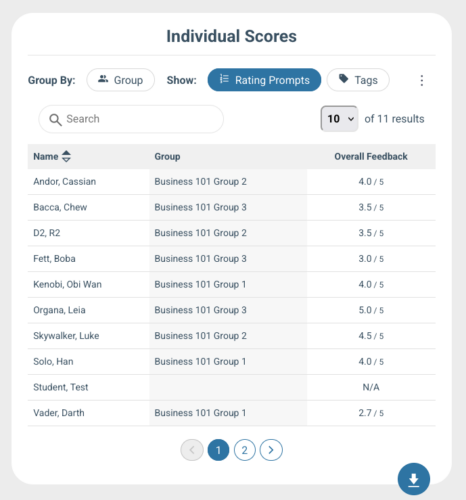
- Individual Scores (Student-level View):
- Shows the average rating each student received for each rubric prompt.
- You can:
- Sort scores by clicking the column headers
- Filter by group to compare results within teams
- Click a student’s name to view their individual results, including the feedback they’ve given and received
To learn more, see Peerceptiv’s documentation.
Override Individual Grades
To adjust a student’s grade:
- Open your evaluation in Peerceptiv.
- Click Results in the Assignment Menu.
- Scroll to Individual Scores and click the student’s name.
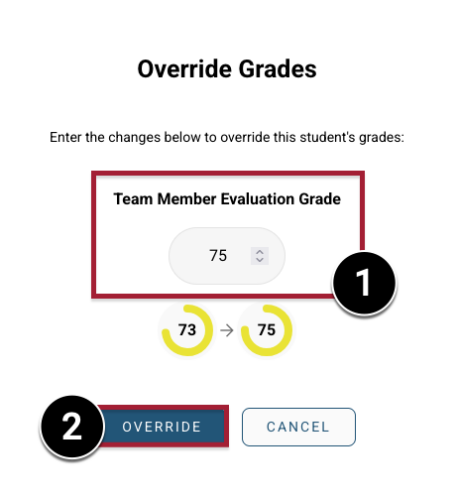
- Click Override.
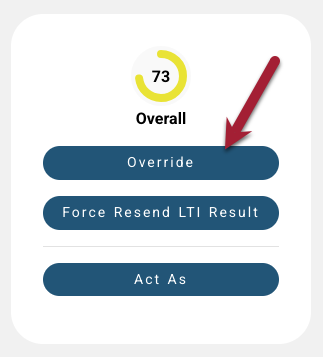
- On the Override Grades window, enter a new score [1] and click Override [2] to save your changes.
To send the updated grade to Canvas (optional):
- Open your evaluation in Peerceptiv.
- Click Results in the Assignment Menu.
- Scroll to Individual Scores and click the student’s name.
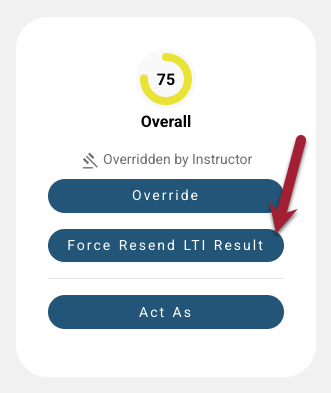
- Click Force Resend LTI Result.
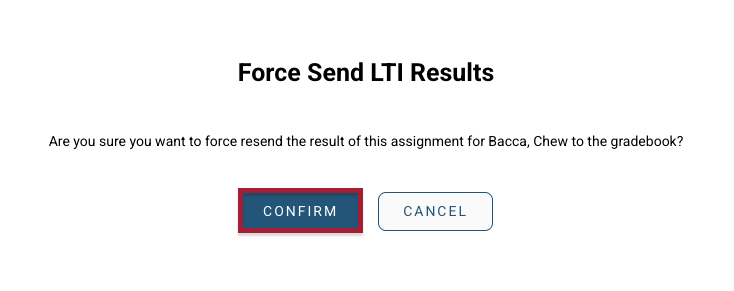
- On the Force Send LTI Results window, click Confirm.
- On the Result Resend window, click Continue.
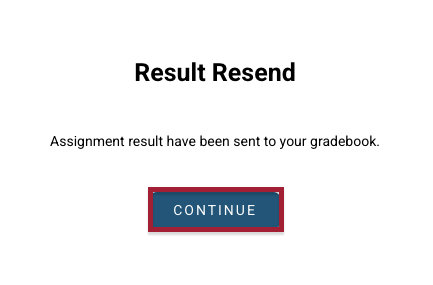
The updated grade will be sent to Canvas. You may need to refresh your Gradebook and allow a few minutes for the change to appear.
Release Results
If you chose manual release during the setup process, students won’t see feedback or grades until you release them. This gives you time to review results, make any adjustments, and decide what information you’d like to share before students see their evaluations.
- Open your evaluation in Peerceptiv.
- Click Results in the Assignment Menu.
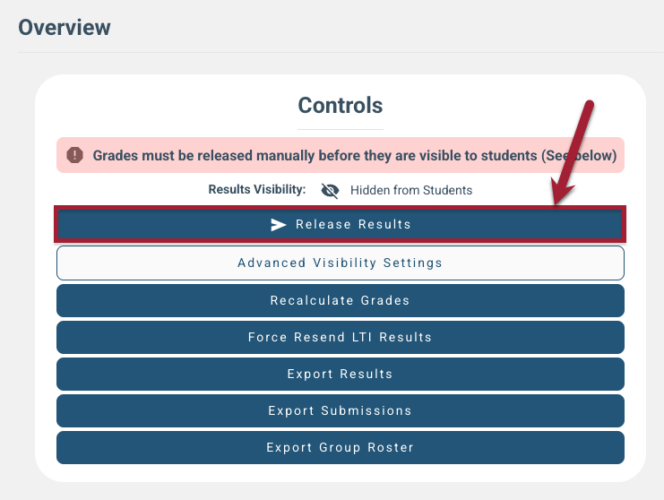
- From the Overview tab on the Results page, you can:
- See whether results are currently visible to students
- Click Release Results to:
- Make feedback visible to students
- Send grades to the Canvas Gradebook (if applicable)
To learn more, see Peerceptiv’s documentation.
Control What Students See
To choose what appears on the Results page for each student:
- Open your evaluation in Peerceptiv.
- Click Results in the Assignment Menu.
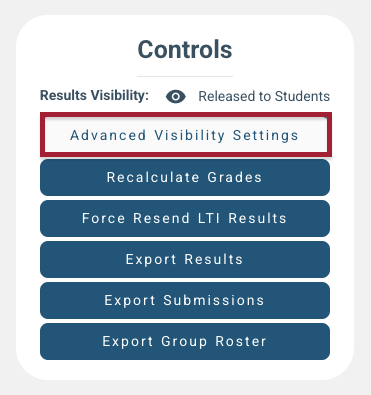
- From the Overview tab on the Results page, click Advanced Visibility Settings Results. You can show or hide:
- Rating Results
- Comment Results
- Grade Results
To learn more, see Peerceptiv’s documentation.
Export Results
To download a spreadsheet of all evaluation data for your records or further analysis:
- Open your evaluation in Peerceptiv.
- Click Results in the Assignment Menu.
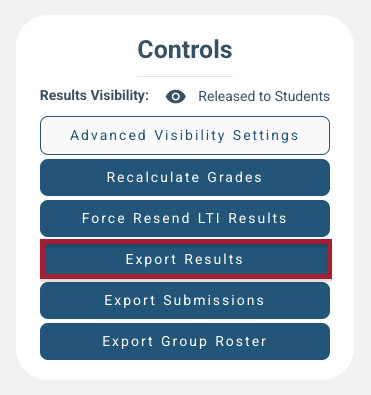
- From the Overview tab on the Results page, click Export Results. Your export includes:
- Assignment Results: Overall grades and completion status for each student.
- Reviews: All ratings and comments submitted by students. If your evaluation includes multiple components, you’ll see a separate sheet for each.
To learn more, see Peerceptiv’s documentation.